Presenting
Draw frames on the board you already have. The camera is the deck.
There are no slides to build. You draw frames around parts of your board, and presenting flies the camera from one to the next.
Drawing slides
Turn on Slides in the toolbar — it is a mode, next to Draw and Connect. Frames appear, and dragging on empty canvas draws a new one. Outside this mode frames are invisible, so a board you present is still just a board the rest of the time.
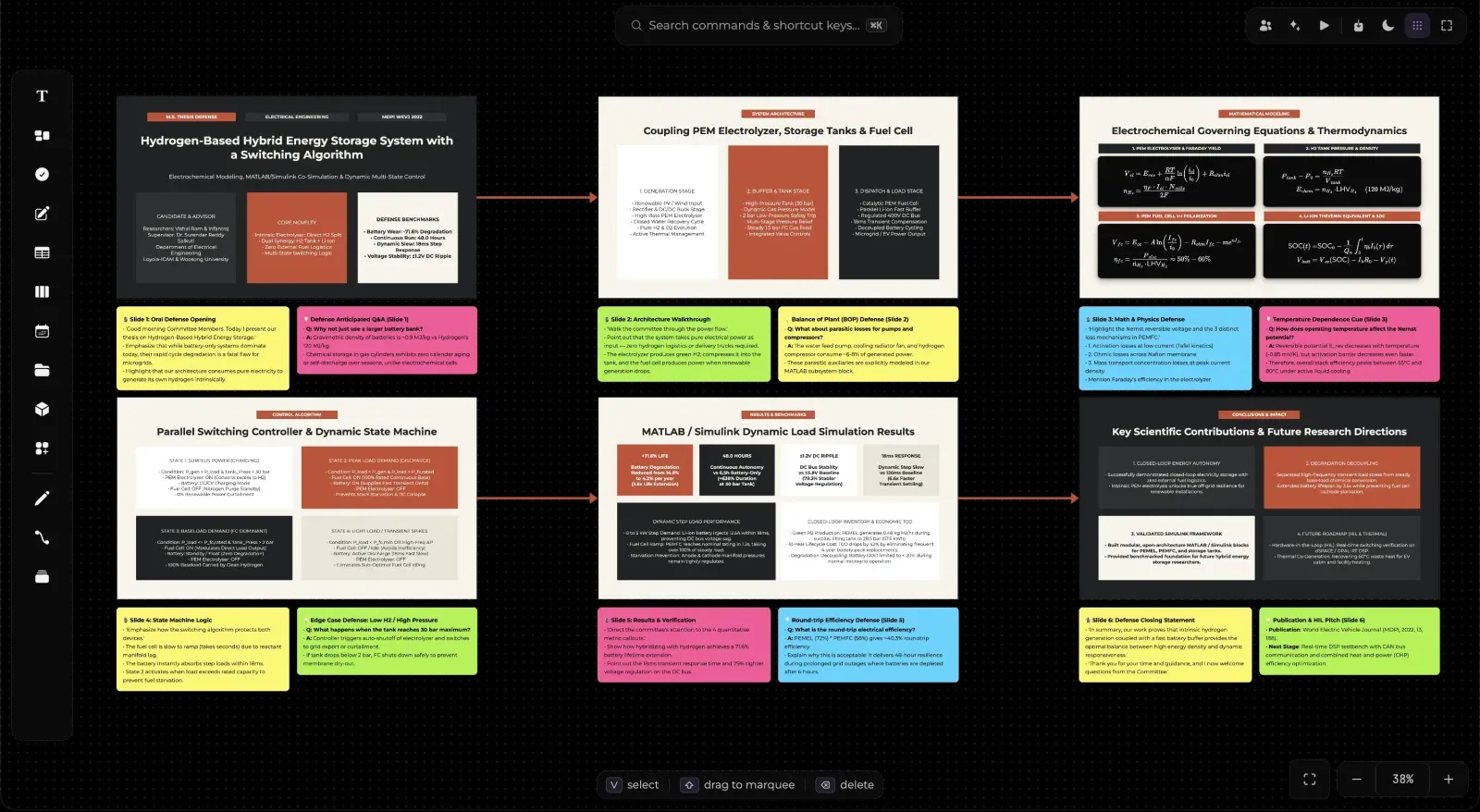
Every frame is locked to the board's aspect ratio — 16:9 unless you change it — so what you frame is what will be shown. Frames may overlap, and two frames may share content.
Presenting
Press ▶. The chrome disappears and the first frame fills the screen.
- Arrow keys step through the running order.
- Space goes forward.
- P opens presenter view — notes, the next slide and a timer, on your screen only.
- M switches to map mode.
- Esc leaves and puts the camera back where it was.
The camera's travel time scales with distance: a hop to the next frame is quick, a jump across the board takes visibly longer, so the audience can follow where they were taken. If you have asked your system for reduced motion, it cuts instead of flying.
Magic Move
An element covered by two consecutive frames animates between them instead of cutting. It is free — nothing to set up — and it is the difference between a deck and a camera move.
Map mode
Press M and the arrow keys stop being next and back and become directions in space. Press → and you go to the frame to the right; press ↓ and → together and you go diagonally.
The rule, precisely: from the current frame's centre, Umbra considers every frame whose centre lies within ±45° of the direction you pressed (±22.5° for a diagonal) and takes the nearest. Two consequences worth knowing rather than discovering: → and ← are not always inverses, and a frame can in principle be unreachable — authoring flags one if it happens.
The board stays live
You can still use the board while presenting. Tick a checkbox, scroll a PDF, type in a sheet. Panning and zooming are the only things switched off, because the camera belongs to the presentation.
Exporting
Export → Deck writes one self-contained .html file. No Umbra, no network, no install —
arrow keys work in it. The honest cost: an exported deck is a rendering, so the live
interaction does not survive. Interactive blocks export as their drawn form.