Flashcards
Interactive 3D study decks with multiple question formats, LaTeX math, and question indexing.
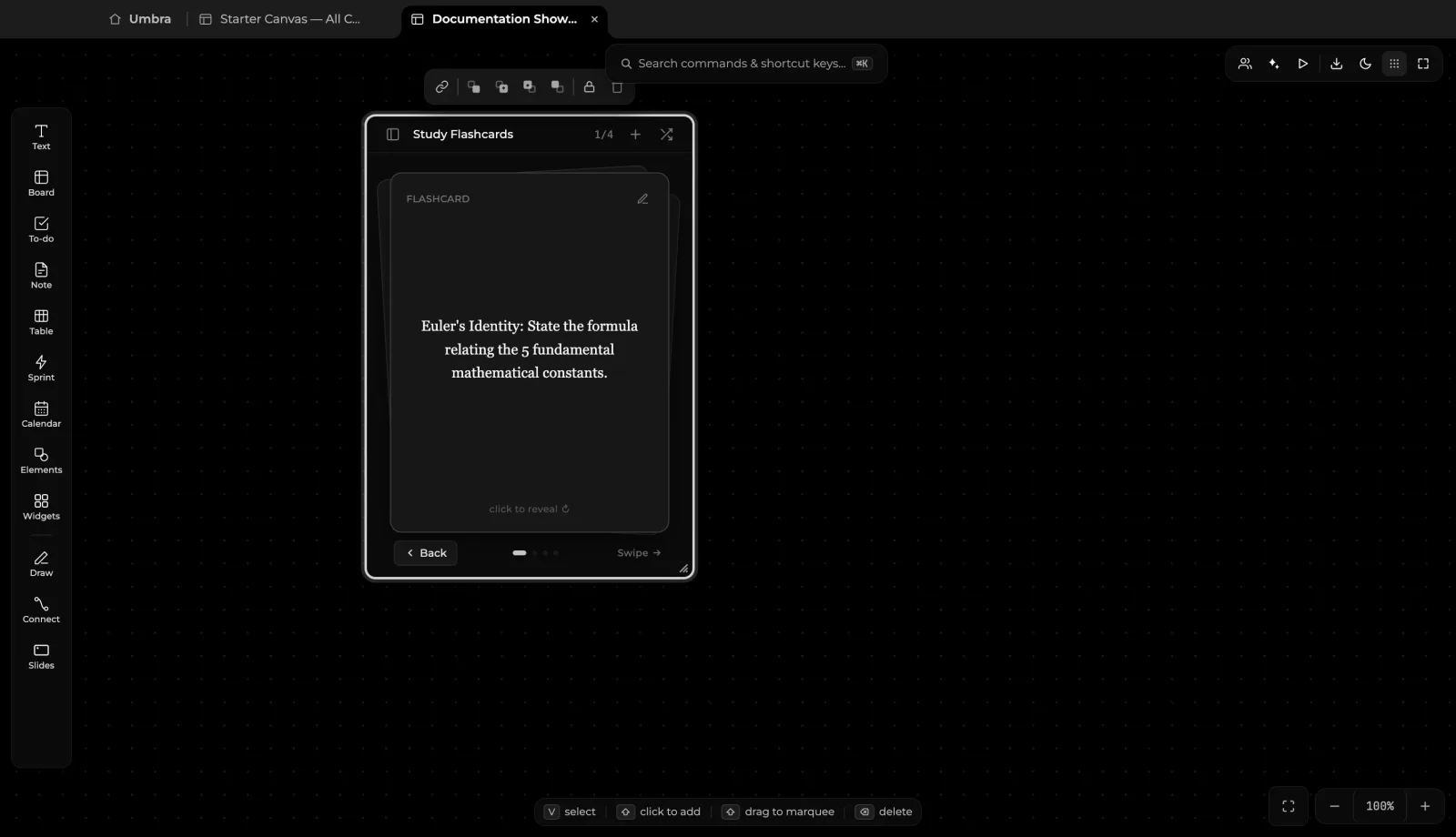
Umbra's Flashcards block turns any infinite canvas into an active recall environment. Whether studying for university exams, memorizing technical terminology, or reviewing complex formulas, flashcards bring 3D tactile interaction directly to your board.
Key Features
1. 3D Perspective Rotation
Click anywhere on the flashcard face or hit the Flip button to trigger a smooth 3D flip animation. The card rotates in spatial 3D perspective to reveal the solution, formula breakdown, or explanation on the reverse side.
2. Multi-Format Question Types
A single study deck supports four distinct card formats:
- Conceptual Flashcard: Standard front question and back answer/explanation for rapid concept testing.
- Multiple Choice (MCQ): Configurable answer options with instant visual feedback upon selection.
- Text Input: Type your answer into a prompt field and check for exact or fuzzy matches.
- Numerical Calculation: Answer prompts requiring numerical precision, units, and tolerance checks (ideal for physics and engineering).
3. Mathematical & Scientific Notation
Both question prompts and solution cards natively support KaTeX mathematical typesetting and scientific equations (e.g. e^(iπ) + 1 = 0 and Maxwell's electrodynamic relations). Chemical equations, fractions, and symbols format cleanly alongside ordinary explanatory text.
4. Questions Drawer & Deck Index
Click the drawer toggle on the deck card to expand the side question index:
- Review card progression (e.g.,
Card 1/4). - See active and pending card statuses (
#01 ACTIVE,#02 MCQ,#03 INPUT,#04 NUM). - Add, duplicate, reorder, or edit cards in the deck with a single click.
How to Create a Study Deck
- Open the Widgets picker by pressing
Won your keyboard. - Drag the Flash Cards tile onto your canvas.
- Click the edit pencil icon on the card to edit the active question and answer.
- Open the questions side drawer (
+) to append new questions to your study deck. - Connect your study deck to research notes or PDF pointers with smart connectors (
C).