Export
Getting your work out, in formats other tools understand.
Everything in the export dropdown:
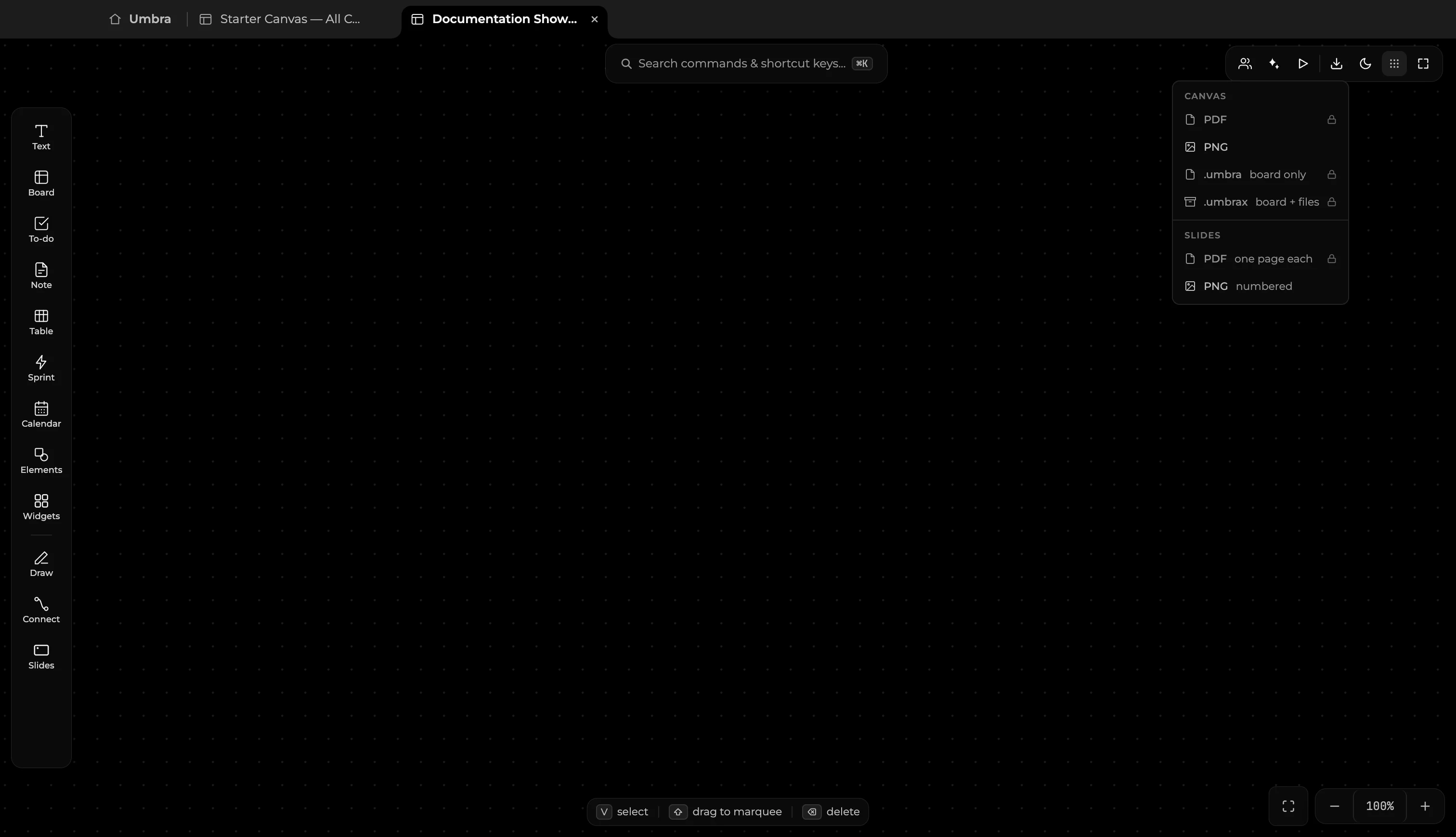
| Format | Good for | Plan |
|---|---|---|
| PNG | A picture of the board or of each slide, for a message or a document. | Solo |
| CSV | Cards and their work fields, for a spreadsheet. | Solo |
| A fixed rendering of the canvas, or one page per slide. | Collaboration | |
| .umbra | The board itself — open it on any machine with Umbra and the canvas is back. | Collaboration |
| .umbrax | The same, carrying every attached file with it. | Collaboration |
How to Export
- Open the board or presentation frame you wish to export.
- Click the Export menu at the top-right of your window.
- Select your desired format:
- PNG Image: Export high-resolution snapshots of your full board, selected cards, or individual presentation slides.
- CSV Data: Export card titles, estimates, assignees, and spreadsheet tables for use in Excel or Google Sheets.
- PDF Document: Export a paginated vector PDF of your board or full slide deck.
- .umbra & .umbrax Archive: Export portable, self-contained board packages to share with colleagues or transfer between computers. All cards, notes, and attached media remain fully preserved.