Folder Access
Link local folders and project directories directly to your canvas with live file watching, drag-and-drop onto the board, and granular read & write security.
Umbra's Access block connects any local folder or project repository on your disk directly to your infinite canvas. Rather than constantly switching between your workspace, file managers, and terminal windows, you can embed browsable, live directory trees directly beside your diagrams, research notes, and sprint tasks.
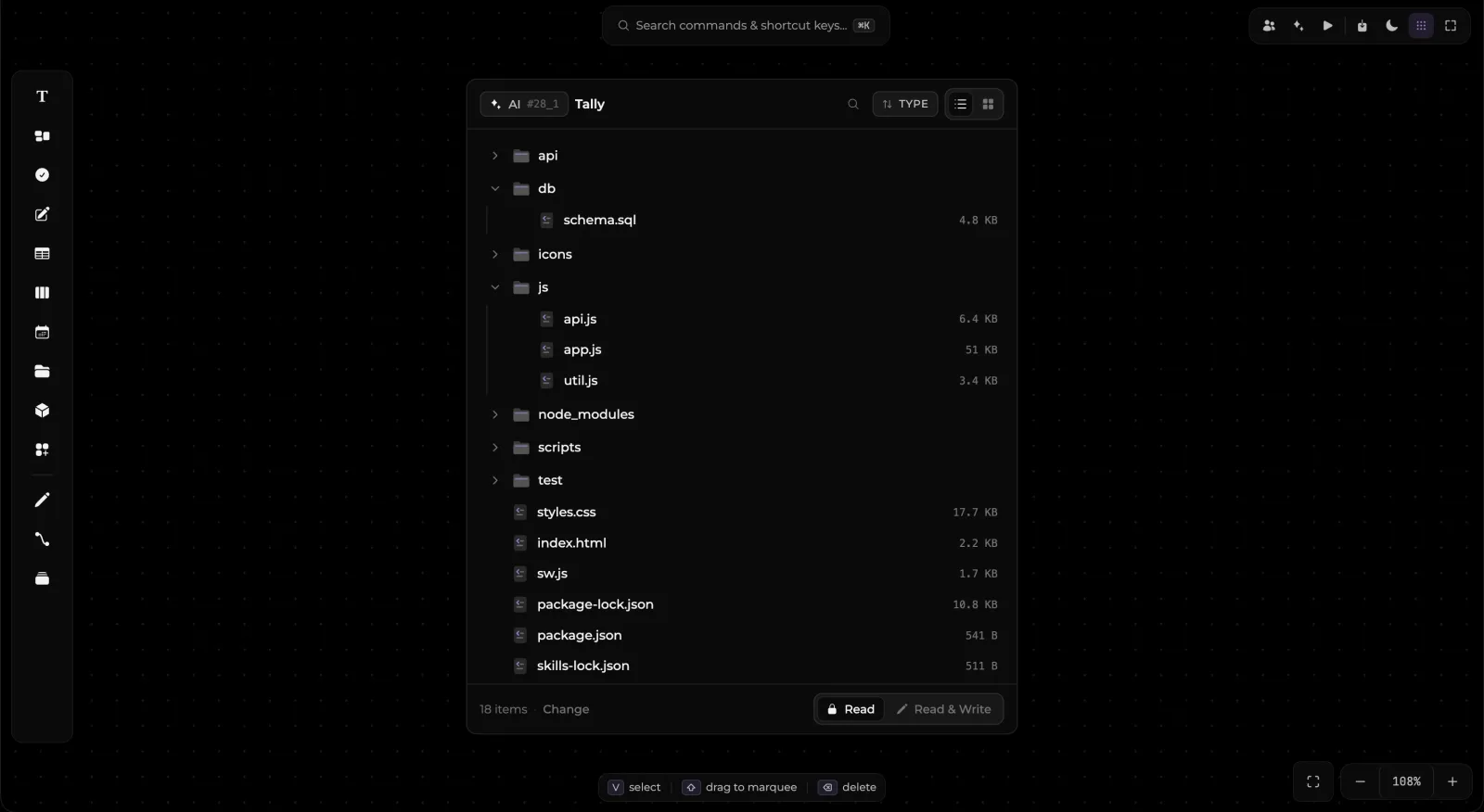
What is the Access Block?
The Access block is a spatial window into your local filesystem:
- Direct Folder Link: Point the block to any directory on your computer (e.g. a Git repository, design assets folder, thesis chapter directory, or client media folder).
- Interactive File Explorer: Displays an expandable directory tree with file icons, hierarchical folder indentation, and formatted file sizes.
- Side-by-Side Context: Place your project source files directly next to your roadmap, sprint kanban, architecture diagrams, and task breakdowns.
Security & Permissions: Read vs. Read & Write
File safety and data integrity are central to Umbra's local-first architecture. Every Access block provides clear, granular permission controls right in its footer and header:
1. Read-Only Mode (🔒 Read) — Safe by Default
By default, every linked Access block is set to Read-Only:
- Protected Disk State: In Read-only mode, files on your disk are strictly immutable to canvas operations. Neither Umbra nor the local AI Assistant can rename, delete, modify, overwrite, or reorganize files in the linked directory.
- Zero Risk: You can safely link sensitive codebases, financial repositories, or master asset folders without worrying that an errant drag, shortcut, or AI prompt might change or destroy your files.
- Full Exploration: You can still browse folders, inspect file sizes, search entries, view file types, and drag files out onto the canvas as independent working cards.
2. Read & Write Mode (✏️ Read & Write) — Explicit Authorization
When you want Umbra or the AI Assistant to help organize, scaffold, or generate project files:
- Explicit Opt-in: Switching to Read & Write requires an intentional click on the toggle button.
- Visual Alert: The indicator lights up in amber (
● read & write), ensuring you always know at a glance that write permissions are enabled. - Authorized Operations: Permits the AI and tools to arrange, create, or update files within that specific directory boundary.
- Instant Revocation: Click
Readat any moment to immediately lock the directory back down to read-only status.
Live Real-Time Synchronization
The Access block is not a static snapshot—it is live and reactive:
- Active Filesystem Watcher: Umbra actively listens for disk change events (
fs:change) in the linked directory. - Instant Reflection: Any modifications made outside Umbra—such as editing code in VS Code, checking out Git branches in terminal, saving new images from a browser, or deleting files in macOS Finder or Windows File Explorer—instantly appear on the canvas in real time.
- No Manual Reloads: You never need to click a refresh button or reload the board to see external file changes.
- Missing Folder Resilience: If a linked external drive is disconnected or a folder is moved, Umbra marks the block with a clear indicator and provides a one-click
Changebutton to reconnect the path.
Drag-and-Drop onto the Canvas
The Access block acts as an active launcher for your board elements. You can grab any file inside the directory tree and drag it directly onto the canvas:
When you drop a file onto the canvas, Umbra automatically recognizes its format and transforms it into a native, interactive element right at your cursor:
| Dropped File Type | Canvas Element Created |
|---|---|
Markdown & Text (.md, .txt) | Editable Note block with live markdown formatting and KaTeX arithmetic |
PDF Documents (.pdf) | Interactive PDF Reader card supporting quote highlights and deep jump-links |
Images & Assets (.png, .jpg, .svg, .webp) | High-resolution Image card with proportional resize handles |
Spreadsheets (.xlsx, .csv) | Interactive Table workbook with formulas and grid calculation |
Word Documents (.docx) | Full Document word processor card with pagination and typography ribbon |
Code Snippets (.ts, .js, .py, .sql, .json) | Syntax-highlighted Code block with multi-language formatting |
| Subfolders | Spawns a dedicated child Access block focused on that specific subdirectory |
Organization & Navigation Tools
Inside the Access block, several built-in tools help you navigate complex folder hierarchies:
- Tree & Grid Views: Toggle between an expandable nested tree list (
List View) and an icon grid (Grid View). - Instant Search (
🔍): Filter down files and nested subdirectories in real time by name. - Sorting (
↑↓ TYPE): Sort entries by:- Type: Folders first, followed by alphabetical file extensions.
- Name: Alphabetical order (
A → ZorZ → A). - Date: Sort by last modified timestamp (
mtime). - Size: Sort by file size footprint.
- Breadcrumb Trail: Drill deep into subdirectories while keeping a clickable breadcrumb path at the top of the block to quickly jump back to parent folders.
- AI Assistant Integration (
✦ AI): Click the AI badge in the header to instantly pass the block reference into the Umbra Assistant panel and ask questions about the project structure.