Getting started
Install Umbra, make a canvas, and find your way around.
Install
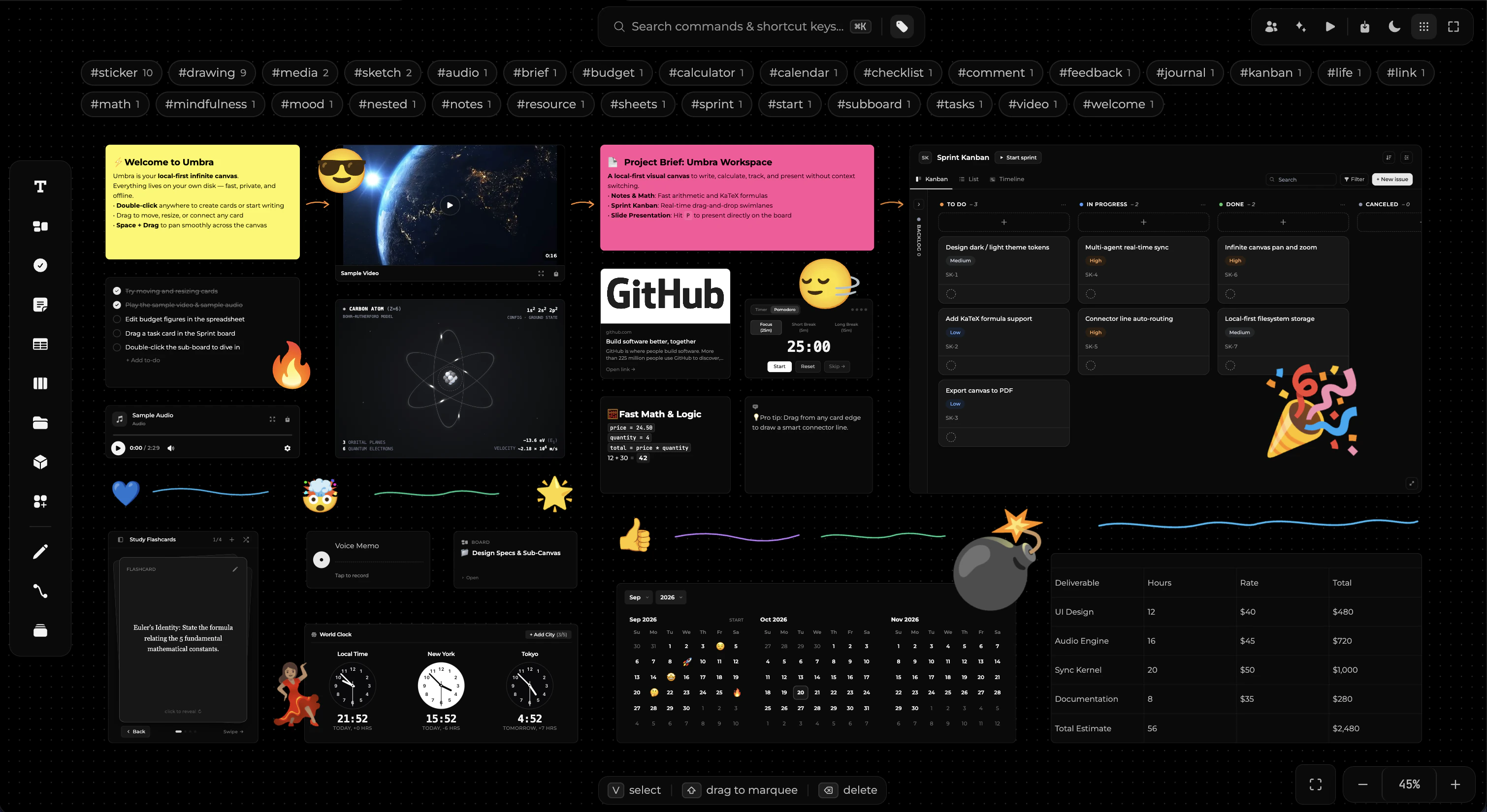
Umbra is a desktop app. Download the build for your platform and open it — there is no account to create and no project to configure.
Solo is free and is the whole app, with a few ceilings. Every kind of block, every editor, presentations and the AI bridge all work on the free-standing app — what Collaboration adds is sync, and the removal of the limits below.
| Solo | Collaboration | |
|---|---|---|
| Canvases | 10 | unlimited |
| Magic Elements that run | 1 per canvas | unlimited |
| Slides presented | first 3 per canvas | the whole deck |
| Export | PNG, CSV | PNG, CSV, PDF, .umbra, .umbrax |
| Calendar reminders | shown, never fired | fired |
| Sync and shared boards | — | yes |
At ten canvases, Umbra stops offering to make an eleventh rather than making one you cannot open — so creating, importing and asking the assistant for a new canvas all pause together until you delete one. If you had more than ten on Collaboration and then cancelled, every one of them stays exactly where it is; the ten oldest are the ones you can open.
Nothing you have already made ever stops working. Slides, Magic Elements and calendar events beyond a Solo ceiling stay on your boards, drawn and editable — they are simply not presented, not run and not fired until Collaboration is active, and a subscription that lapses never costs you a board.
Your first canvas
- Press New canvas on the home screen, or pick a template — Mind map, Kanban board, Moodboard, Meeting notes or Product brief.
- Double-click anywhere on the canvas to drop a note.
- Drag a tool out of the left rail to place any other element type.
- Double-click a board element to drill into it. The breadcrumb walks back out.
Finding things
⌘Kopens the command palette — search, navigate, or run any command by name.⌘Jopens the assistant panel, which talks to your own AI CLI.- The home sidebar has My work (your cards from every board), Version history, Trash and Collaborate.