PDFs
Read, highlight and annotate — then put the passage on the wall.
Drop a PDF on the canvas and the card becomes the first page. Open it for a real reader.
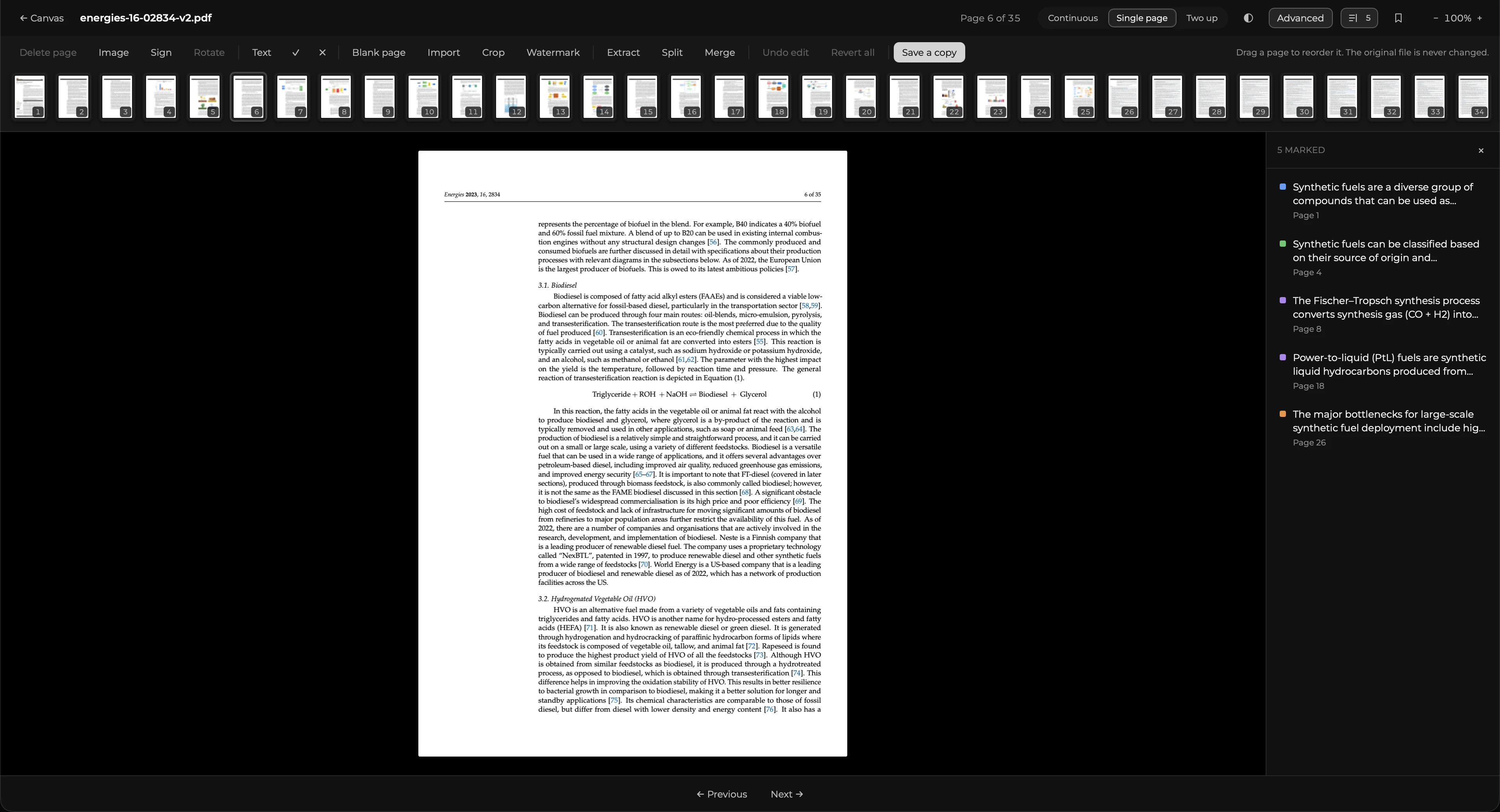
Reading
Continuous, single-page and two-up. Zoom is a multiplier on fit, not an absolute scale — so 120% means the same thing for A4 and for a slide deck.
Marking up
Select text and choose a highlight colour, or leave a comment. Everything you mark appears in the rail on the right, in reading order.
Add to canvas
Any annotation can be placed on the board as a pointer — a small card carrying the quote, which double-clicks back to the page it came from. Put it beside the diagram it explains.
The two directions differ, and the difference is deliberate:
| You delete | What happens |
|---|---|
| The pointer on the canvas | Only the pointer. The highlight stays on its page, and the rail offers Add to canvas for it again |
| The highlight in the reader | It goes, and every pointer to it goes with it — one undo brings them all back |
A pointer is a placement of an annotation; the annotation is the thing itself. Removing a placement must not destroy the source, and destroying the source must not leave cards pointing at nothing.
Editing pages
Under Advanced: reorder, rotate and delete pages, place an image, and sign. Nothing rewrites your original file — every change is a list of edits replayed on render, and baked in only when you Save a copy.
Placing an image snaps to the page's own centre, edges and margins, and you can drag it after dropping it.