Getting started
Install Umbra, make a canvas, and find your way around.
Install
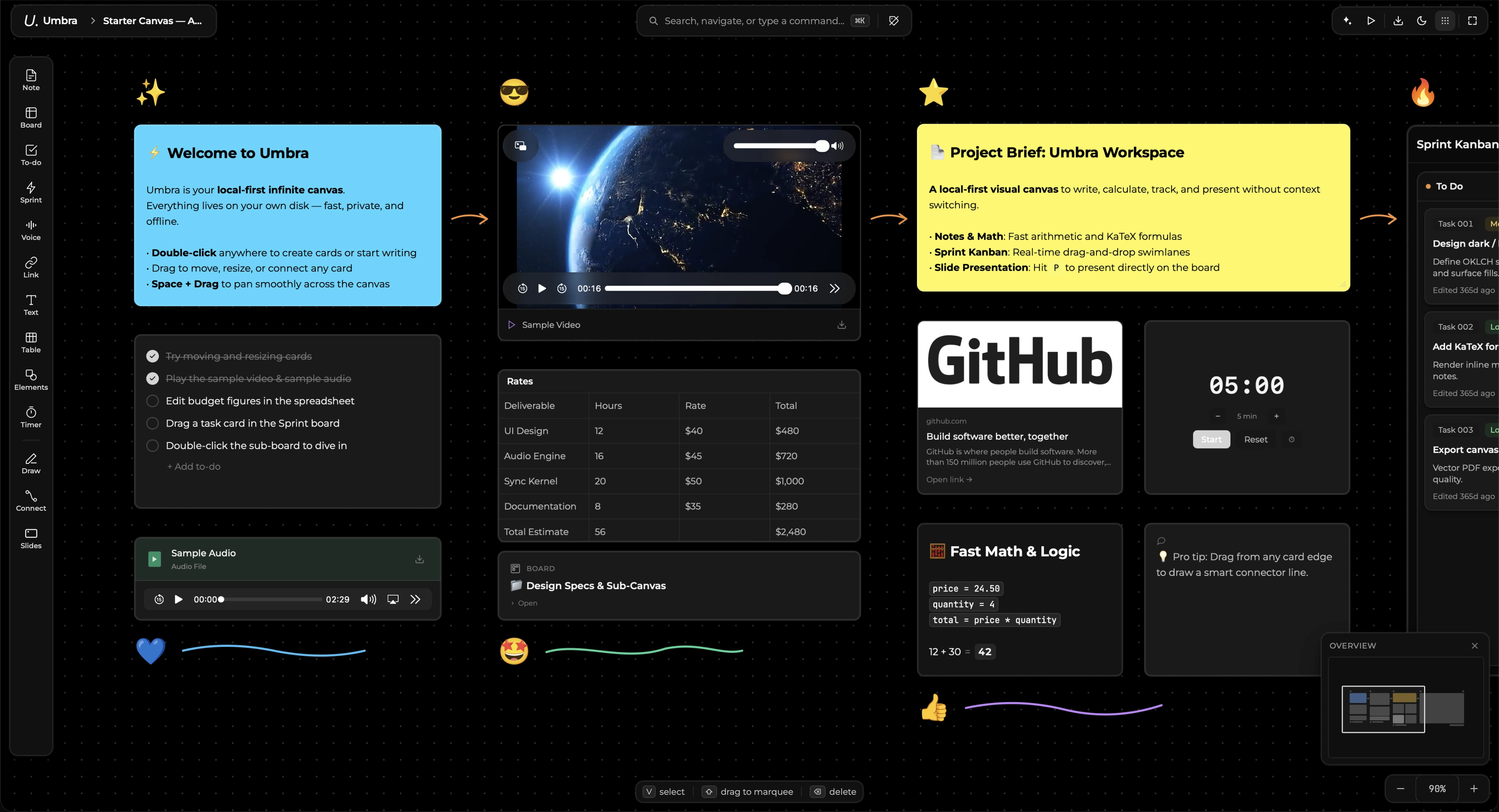
Umbra is a desktop app. Download the build for your platform and open it — there is no account to create and no project to configure.
Your licence gates sync and nothing else. Every kind of block, presentations, export and the AI bridge work on the free-standing app, because withholding a feature your own machine can provide would cost us nothing to grant and make the app worse for someone who already paid.
Your first canvas
- Press New canvas on the home screen, or pick a template — Mind map, Kanban board, Moodboard, Meeting notes or Product brief.
- Double-click anywhere on the canvas to drop a note.
- Drag a tool out of the left rail to place any other element type.
- Double-click a board element to drill into it. The breadcrumb walks back out.
Finding things
⌘Kopens the command palette — search, navigate, or run any command by name.⌘Jopens the assistant panel, which talks to your own AI CLI.- The home sidebar has My work (your cards from every board), Version history, Trash and Collaborate.